Adding an additional structure.
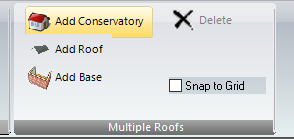
- You can start with either a template design or a bespoke design, then navigate to the "Multiple" tab at the top of your screen.

- Next, select add "Conservatory", "Roof" or "Base" depending on what structure you would like to add.
- Now choose which structure you would like to add from the template picker or choose "Bespoke" design (You can find a guide to Bespoke designs HERE).
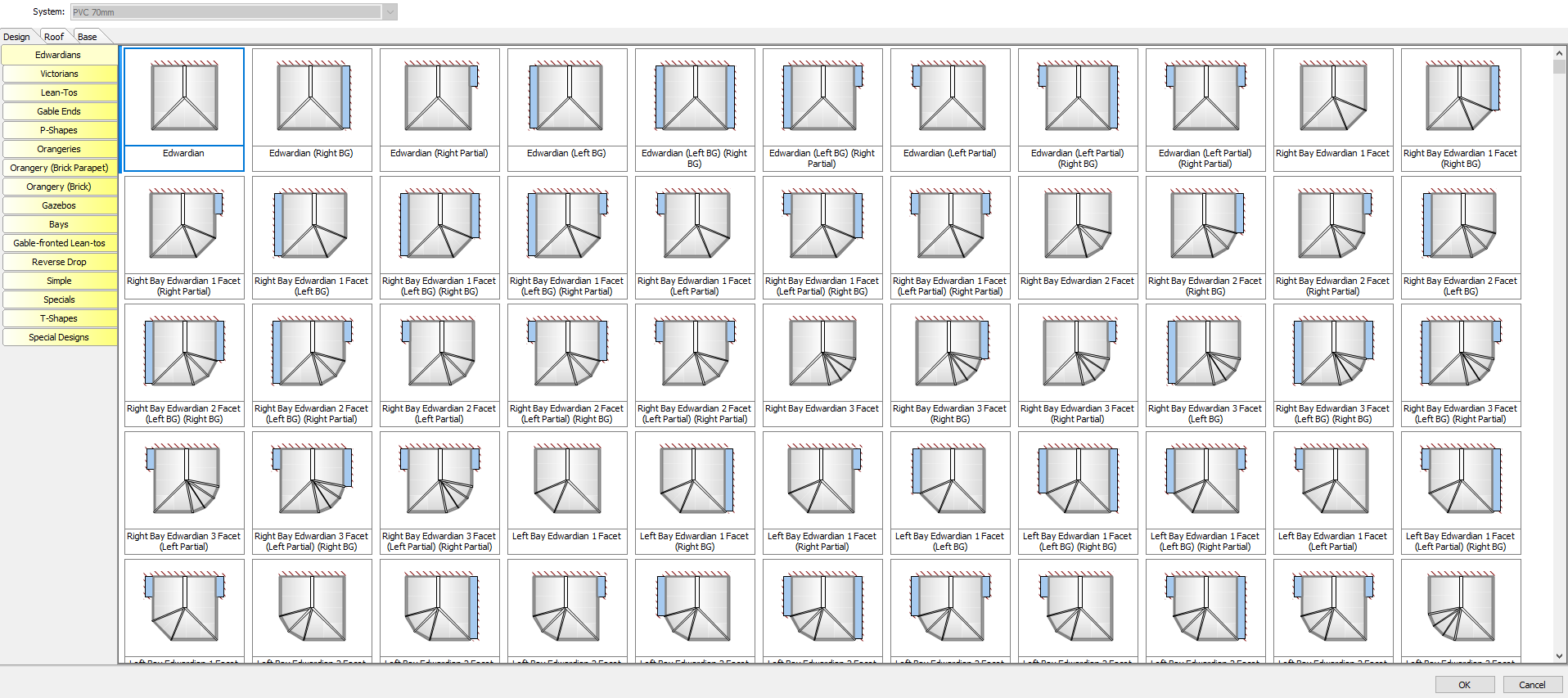
- I am going to add an additional lean-to, to do this, double click on the "Lean-to" template to add it to the current design.
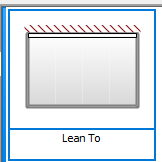
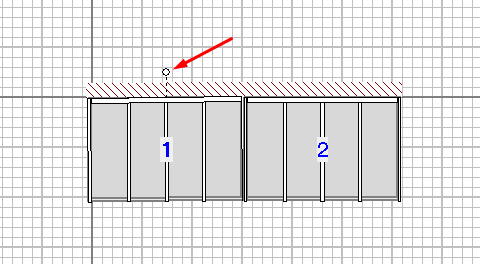
- Both structures should now be visible. To move then into the correct position, navigate to the "Multiple" tab and click and drag either design thumbnail.
- To rotate a design click and drag the small circle above the design thumbnail.
Editing designs with multiple structures.
Editing a design with multiple structures is just as easy as editing a normal design.
- At the top right of your screen, you should now have an element picker, to choose which structure you are currently editing just click the relevant thumbnail in the element picker, the currently selected structure should be highlighted in grey.
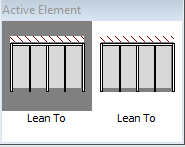
- With this structure highlighted you can now go to the "Roof", "Basework" or "Frames" tab or "Order Details" and edit the design as you normally would.
There are a couple of important things to be aware of when creating a design with multiple structures.
- Pricing will not function on designs with multiple structures.
- Certain reports may have fields that cannot be generated and will therefore be disabled.
If you have any questions or need any help with using RoofWright please email our support team at support@rpssoftware.co.uk