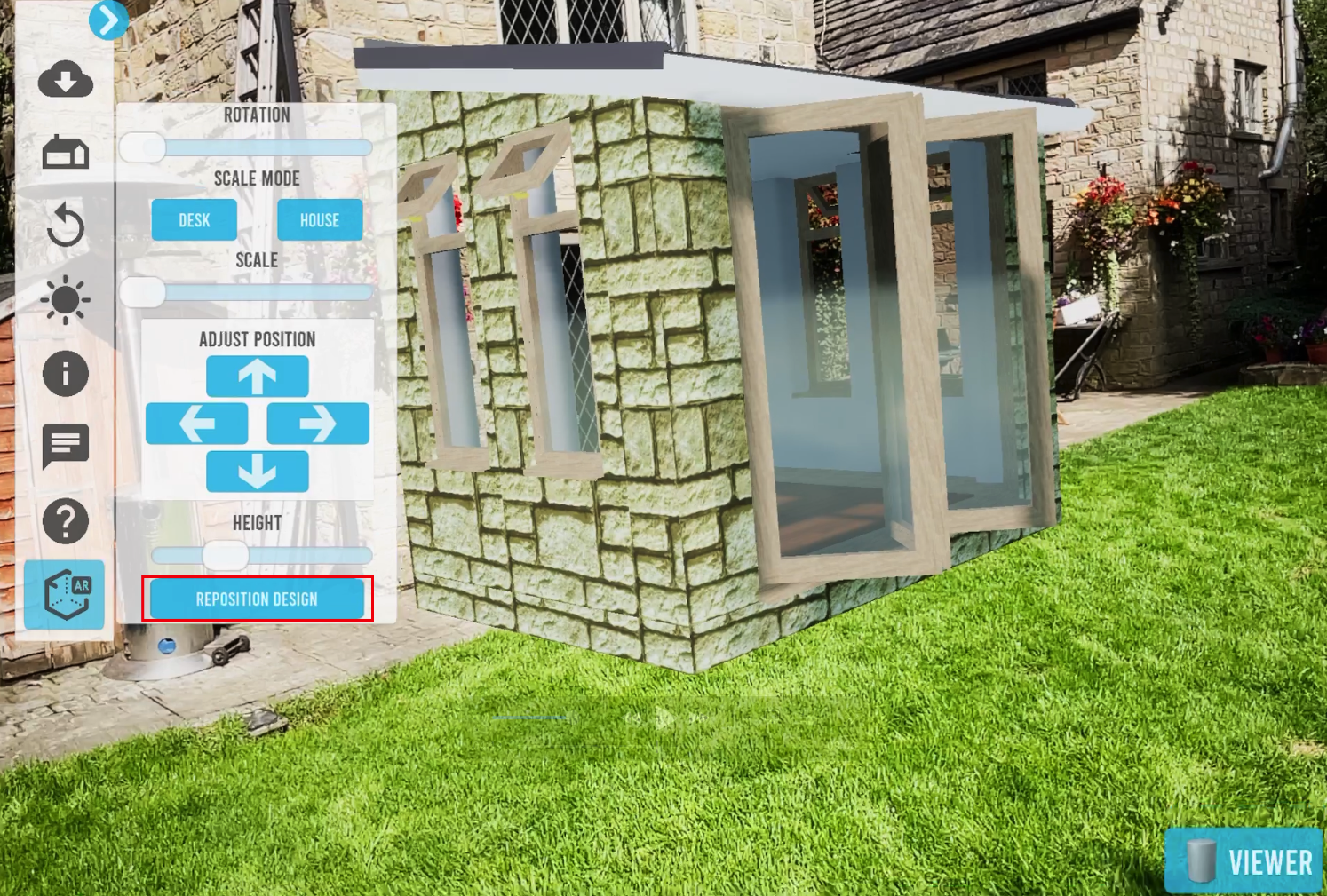
This guide will explain how to use the Augmented Reality features in the viewer app.
This guide does not explain how to load a design within the app, if you need help with this, please read this article first.
- Stand with the tablet facing the location you want to place the design.
- Select the "AR" option at the bottom of the left-hand menu.
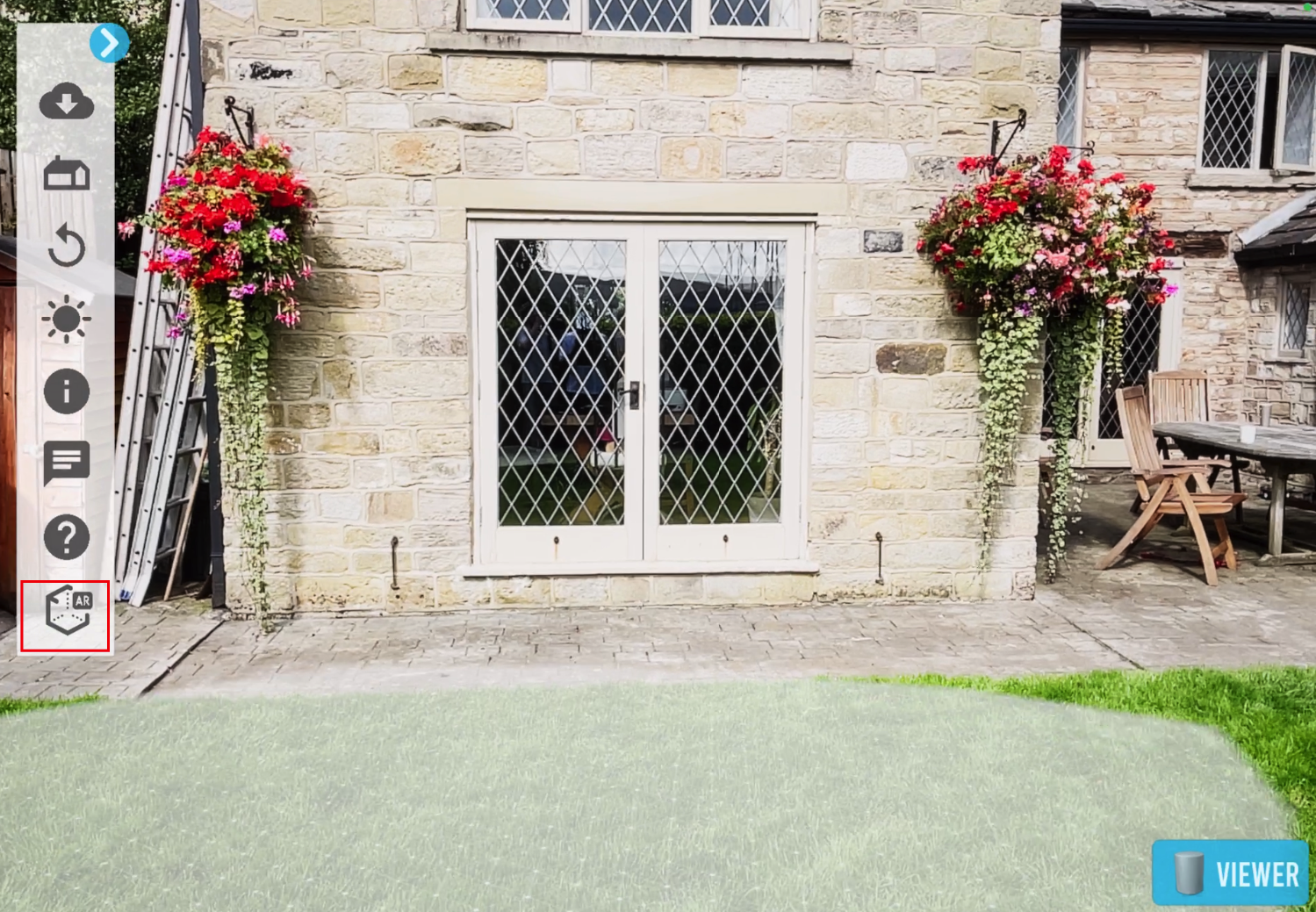
- A white mesh should appear on any horizontal surfaces detected, simply tap on the mesh where you want the design to appear. (If a white mesh does not appear where you want to the design to be placed, try viewing the surface from a different angle or distance.)
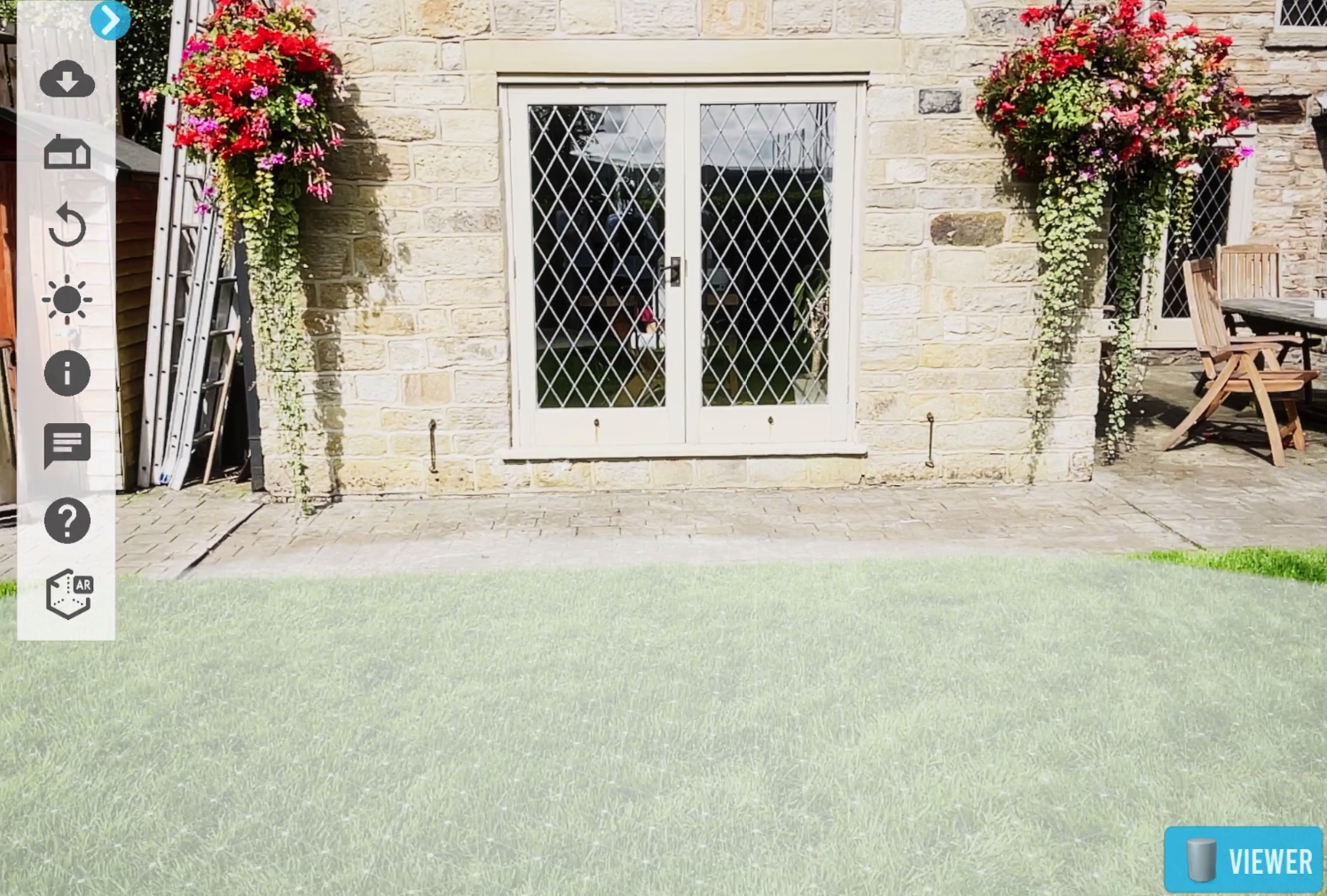
- After you have tapped the screen to place the design it may be the wrong size and in the wrong position, use the menu options on the left of the screen (in the AR menu) to adjust the size, location and rotation of the design until it is in it's desired location.
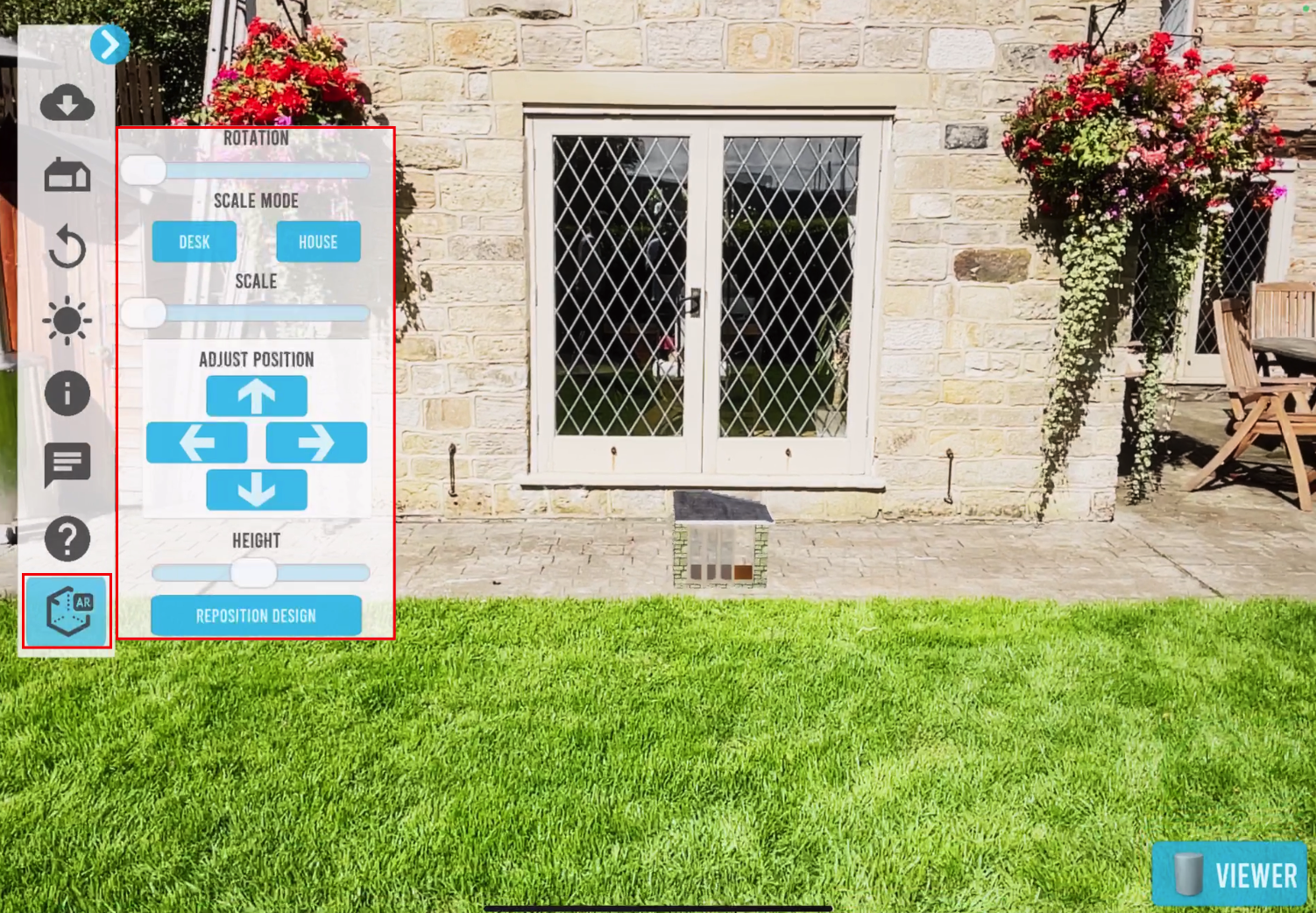
- After you have manipulated the design into its desired location, you can then walk around (or even inside) the design to experience and see what it would look like if it was actually there!
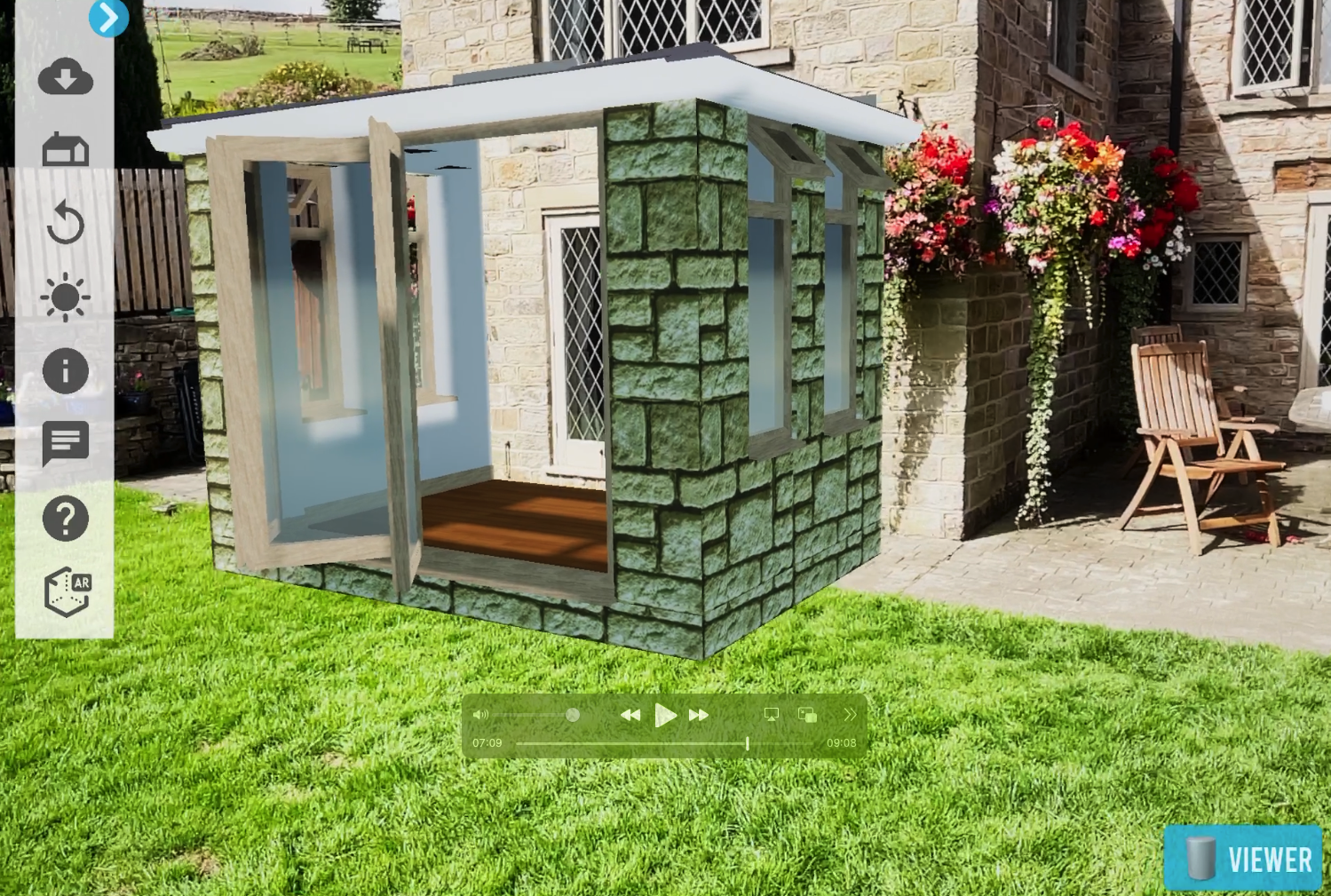
- If you need to move the design, you can click "Reposition Design" and select a new location on the mesh to place it.